Touch Typing Tutorial
Why Learn Touch Typing?
Touch typing is one of the highest-return skills you can develop as a computer user. Most people type 30–40 WPM by hunting and pecking — touch typists commonly reach 60–80 WPM, and advanced typists exceed 100 WPM. Beyond raw speed, touch typing reduces mental fatigue: when you no longer have to think about where the keys are, your full attention goes to what you are writing.
What is Touch Typing?
Touch typing is the practice of typing without looking at your fingers or the keyboard. It relies on muscle memory built around a fixed starting position called the Home Row. Because your fingers always return to the same position, you develop a spatial map of the keyboard in your muscle memory — you learn how far each key is from home, not where it is on the keyboard.
How to Find Home Row
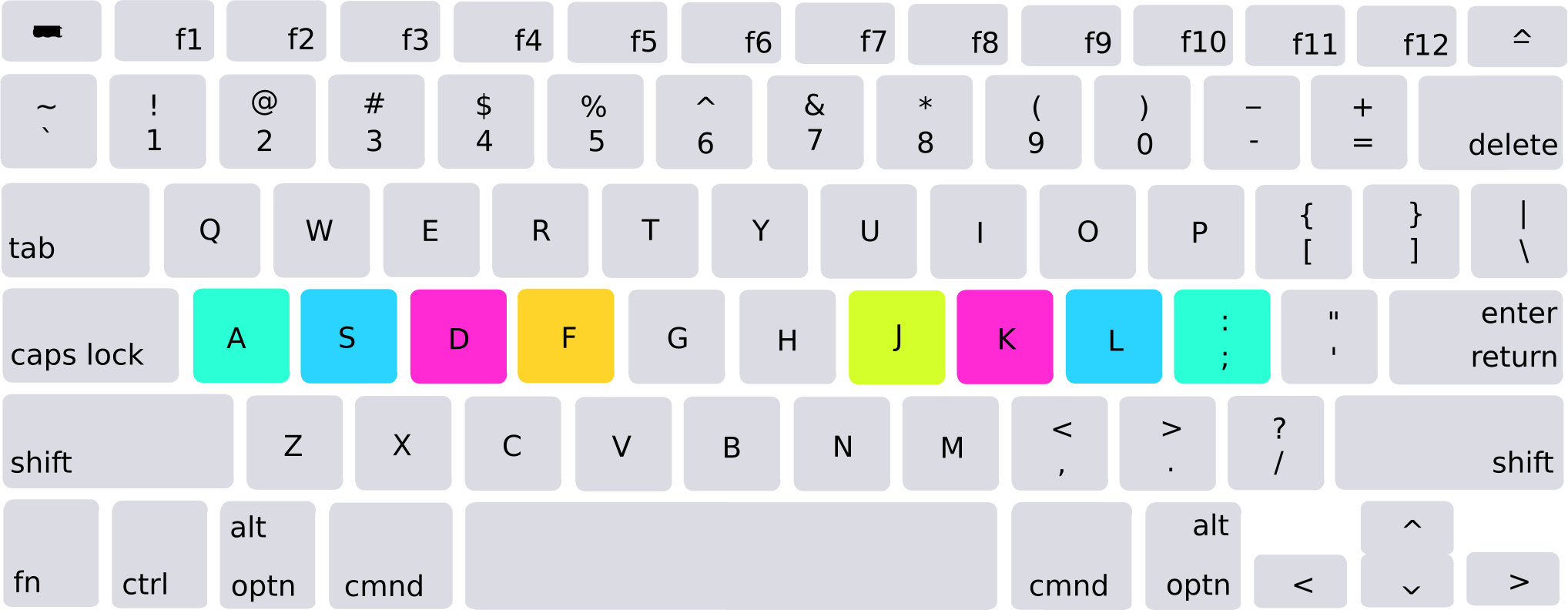
Place your 4 left fingers on A S D F and your 4 right fingers on J K L ;. There is a raised notch on the F and J keys — these sit under your index fingers and are your anchors. Feeling for these notches is how you confirm your hand position without looking.
Your thumbs should rest on or just above the Space bar.
How to Type with Zone Control
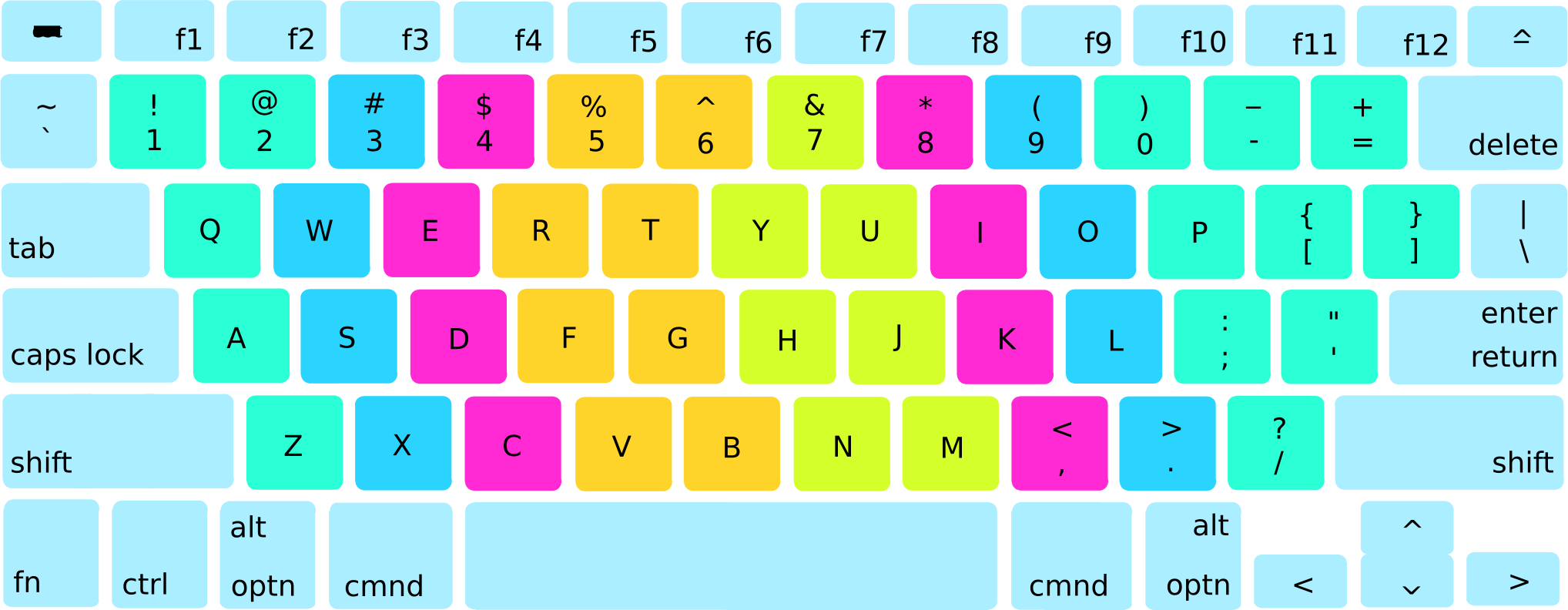
With your fingers on Home Row, each finger is responsible for a specific zone of keys — never reach across zones. After pressing any key, return the finger that moved back to its Home Row position before pressing the next key.
Shift and Space rules:
- To capitalize a letter, press Shift with the opposite hand from the one typing the letter. For example, to type a capital F (left hand), press Shift with your right pinky.
- Press the Space bar with the thumb of the hand that did not type the last letter. This keeps both hands active and maintains rhythm.
Posture and Hand Position
Good posture reduces fatigue and prevents repetitive strain injuries:
- Sit with your back straight and feet flat on the floor.
- Position your keyboard so your elbows are at roughly a 90° angle.
- Keep your wrists off the desk while actively typing — resting your wrists while typing bends them and restricts movement. Wrist rests are for pausing, not for typing.
- Your fingers should be slightly curved, not flat.
What WPM Should I Aim For?
- Beginner (20–35 WPM) — Still building muscle memory, frequent lookdowns
- Developing (35–55 WPM) — Mostly touch typing, some hesitation
- Average (55–70 WPM) — Comfortable touch typist
- Fast (70–90 WPM) — Noticeably faster than most people
- Advanced (90–120 WPM) — Competitive typist
- Elite (120+ WPM) — Top-tier competitive speed
New touch typists often slow down temporarily when switching from hunt-and-peck. This is normal. Stick with it — the muscle memory builds quickly.
Tips to Improve Typing Speed
- Don't look at your keyboard. This is the most important habit. Cover your hands or use a blank keyboard if you have to. Each time you look down you are reinforcing the wrong behavior.
- Prioritize accuracy over speed. Speed will come naturally as accuracy improves. Typing fast but incorrectly trains bad habits and slows your WPM score more than going slow does.
- Read ahead. As you grow more comfortable, shift your eyes to the next word before you finish the current one. Pausing between words is often where speed is lost.
- Practice in short daily sessions. 10–15 minutes of focused practice daily produces faster results than occasional long sessions. Consistency builds muscle memory.
- Return to Home Row after every keystroke. This is the core discipline of touch typing. If your fingers drift, your spatial map breaks down.
- Focus on your weak keys. Notice which keys cause hesitation and drill them specifically rather than taking full tests repeatedly.
How to Use This Test
The test offers four durations — 15, 30, 60, and 120 seconds. Choose based on what you're after:
- 120 seconds is the most demanding and gives the truest picture of sustained typing endurance. Best for serious progress tracking.
- 60 seconds gives a solid picture of your sustained typing speed. Long enough to smooth out the warm-up effect and variance between bursts. Good default for tracking progress over time.
- 30 seconds is a good middle ground for a quick check without committing to a full minute.
- 15 seconds reflects your peak sprint speed more than your average. Scores will be higher than your 60-second result — that gap is normal.
For practice sessions:
- Focus on accuracy first — aim for 95%+ before trying to increase speed.
- Repeat daily. For beginners switching from hunt-and-peck, consistent daily practice typically produces steady WPM gains over the first few weeks.
- If your accuracy drops below 90%, slow down. Typing fast with poor accuracy reinforces bad habits and makes the accuracy problem harder to fix later.
Your results show WPM, Raw WPM, Accuracy, Consistency, CPM, KPH, and error counts. CPM (characters per minute) and KPH (keystrokes per hour) express the same speed in different units — useful if a job application lists requirements in KPH rather than WPM.